
OEMNAVIGATIONS
CHANGE SPLIT SCREEN CARPLAY TO FULLSCREEN - CABLE CODING
CHANGE SPLIT SCREEN CARPLAY TO FULLSCREEN - CABLE CODING
Couldn't load pickup availability
Please note that this is the cable coding version, and you'll need an ENET coding cable and a Windows laptop with at least Windows 10. This is because newer firmware versions in BMW's head units can't be coded via USB, making cable coding the preferred choice for compatibility.
Here's how to get started: Sit in your BMW and navigate to Navigation Maps. Press the Options button and access Settings. Select Position & Version History > Version Information.
Now, here's the key: If your software version starts with P, Q, R, S, U, V, W, X, or Y, after the wording NBTEvo_ cable coding is the method to use. For versions starting with the letter N or O, both USB and cable coding are applicable.
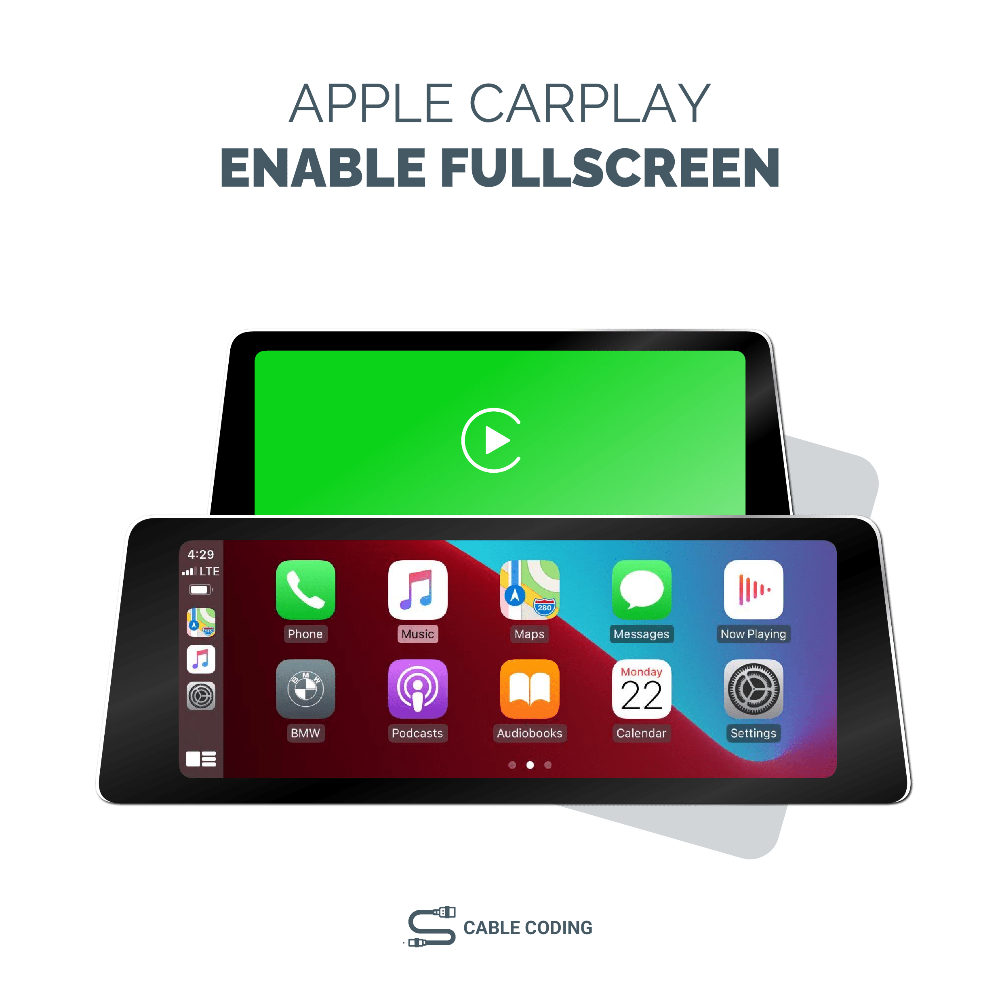
Change Split Screen Carplay to Full Screen to replace the default split-screen setup with a spacious and user-friendly interface. Say goodbye to the limited view. With this upgrade, your CarPlay apps, including Apple Maps, Google Maps, Spotify, and more, will have the space they need to shine.
Please remember that this is the cable coding version, requiring an ENET coding cable and a Windows laptop with at least Windows 10. This is because newer firmware versions in BMW's head units can't be coded via USB, making cable coding the preferred choice for compatibility.
